Saw an open date? Share it in 30 seconds.
Alerts only exist because people share what they see. Here is exactly what to click, step by step. It takes two minutes to set up once, then a few taps each time. We are new, so shared dates, and the alerts that follow them, may be few at first.
OnceSet up
- 1
Install the extension and pin it
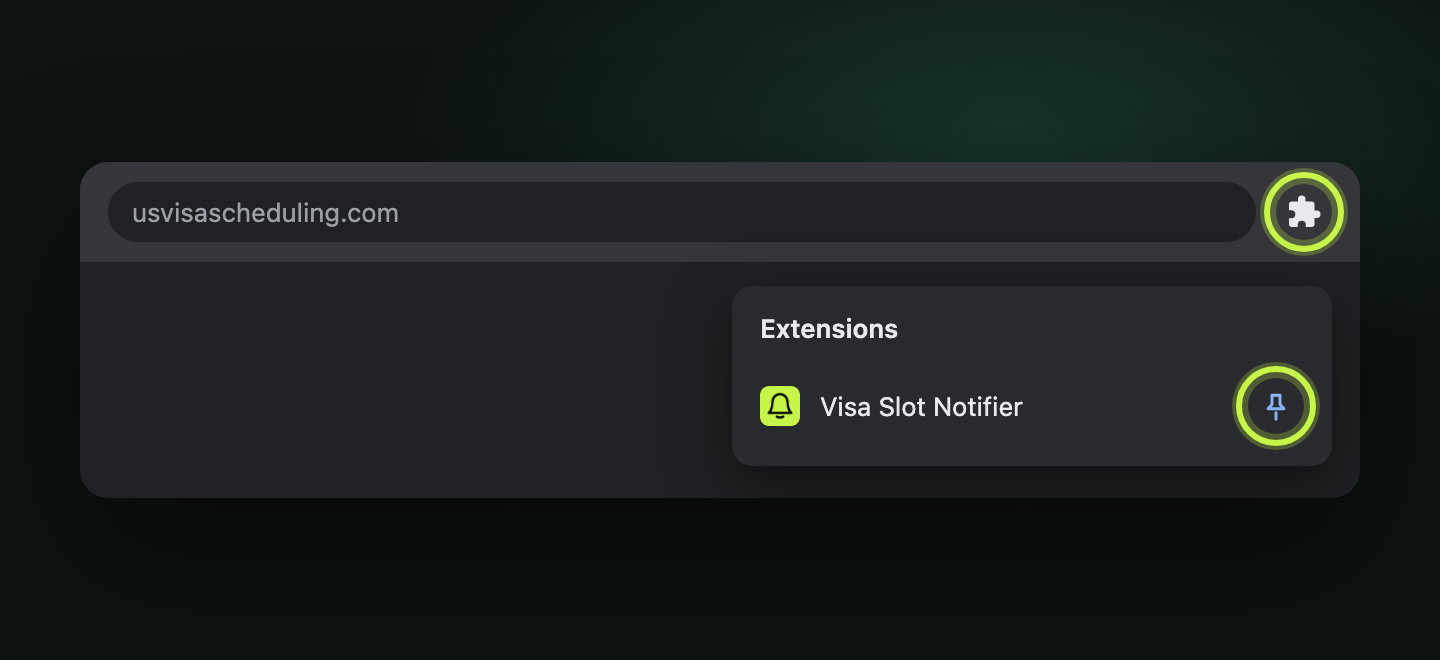
Add Visa Slot Notifier to Chrome, Brave, or Edge on a computer. Click the puzzle icon at the top right of the browser, then the pin next to Visa Slot Notifier, so its lime bell is always one click away.
- 2
Connect Telegram
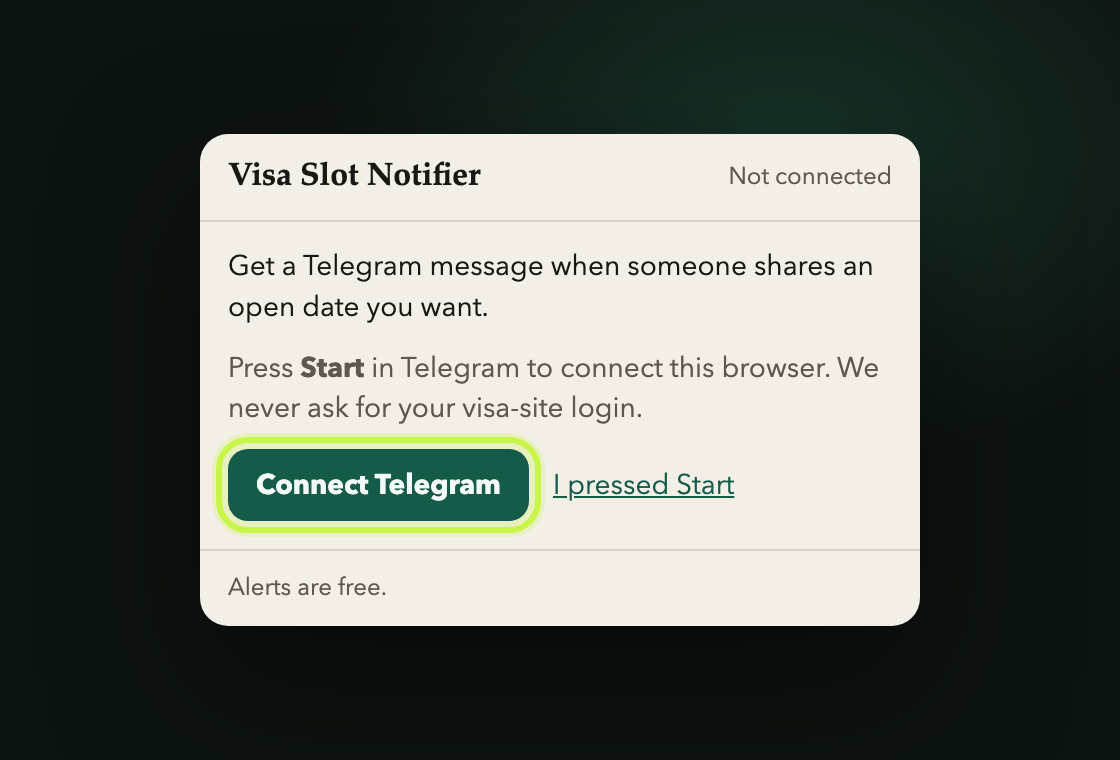
Click the bell, then Connect Telegram. Telegram opens @VisaSlotNotifierForAllFreeBot; press Start. Pick what you want alerts for. Only connected people can share, which keeps fake dates out.
Every timeWhen you see open dates
- 3
Look at the official calendar
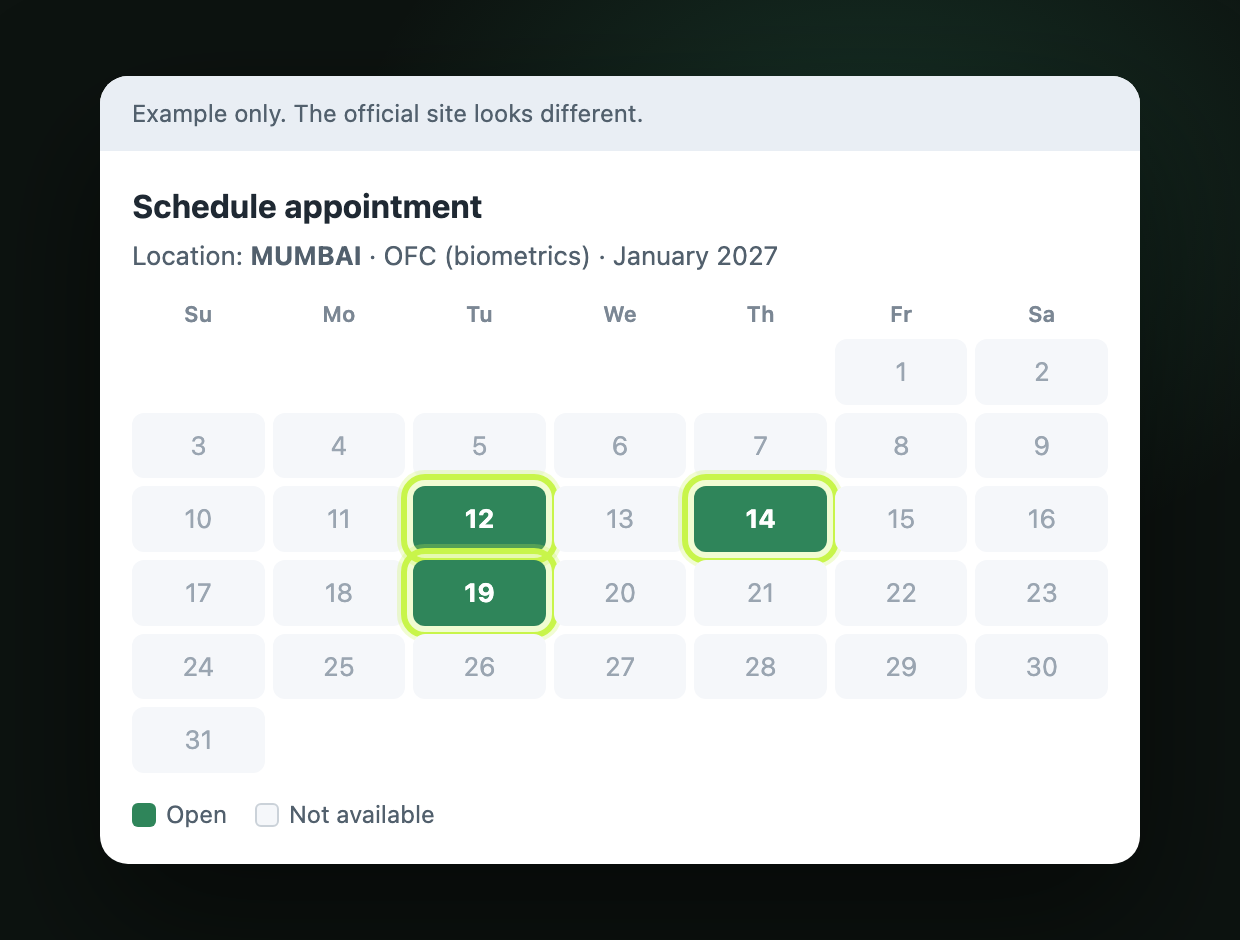
Log in to the official scheduling site as you normally do and open the OFC or consular calendar. Note the post and the days shown as open. We never touch that site; you just look.
- 4
Open the bell and check post, type, and visa
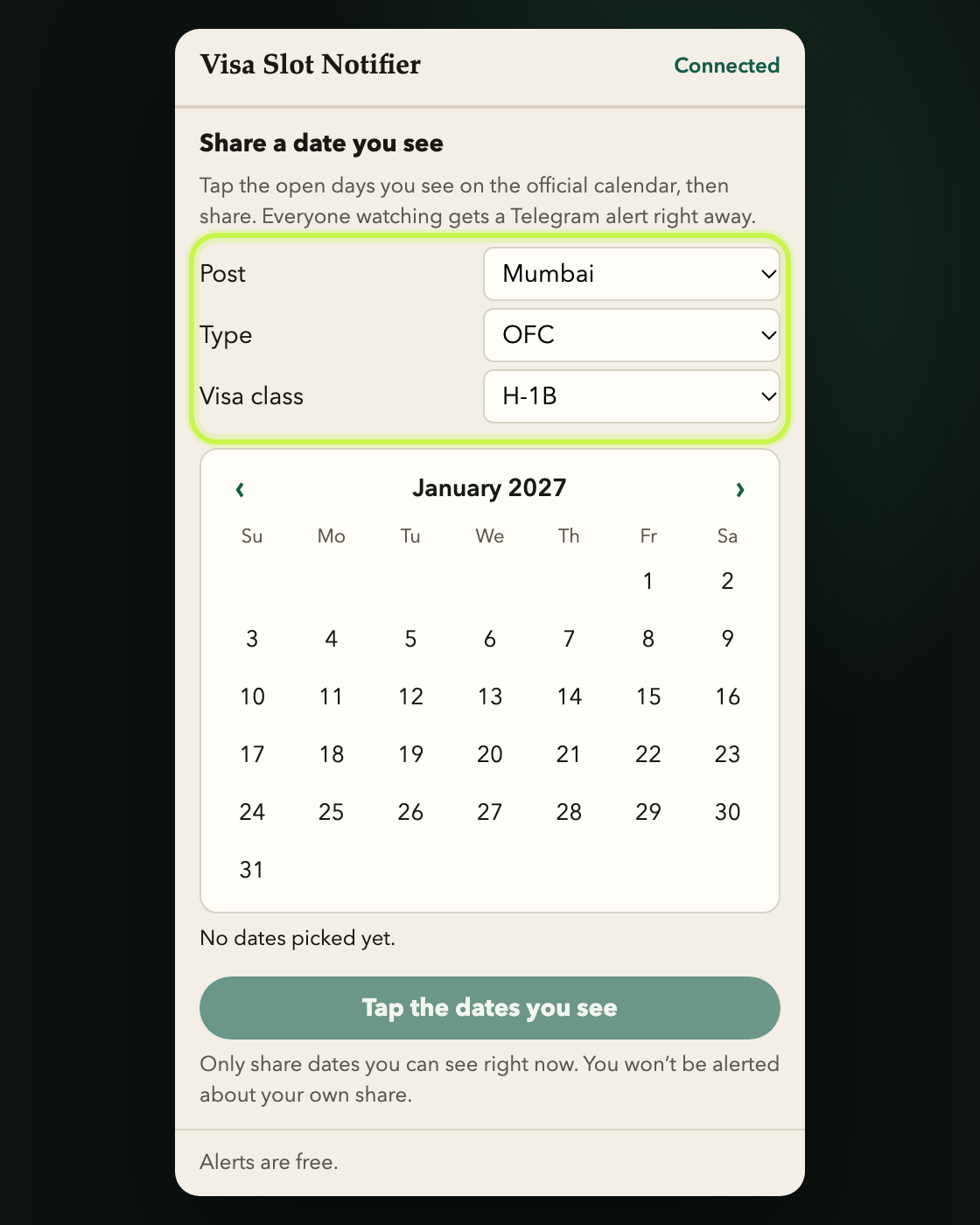
Click the lime bell. Scroll to Share a date you see. Choose the post, OFC or consular, and your visa class, matching the calendar you are looking at. Next time they are already filled in.
- 5
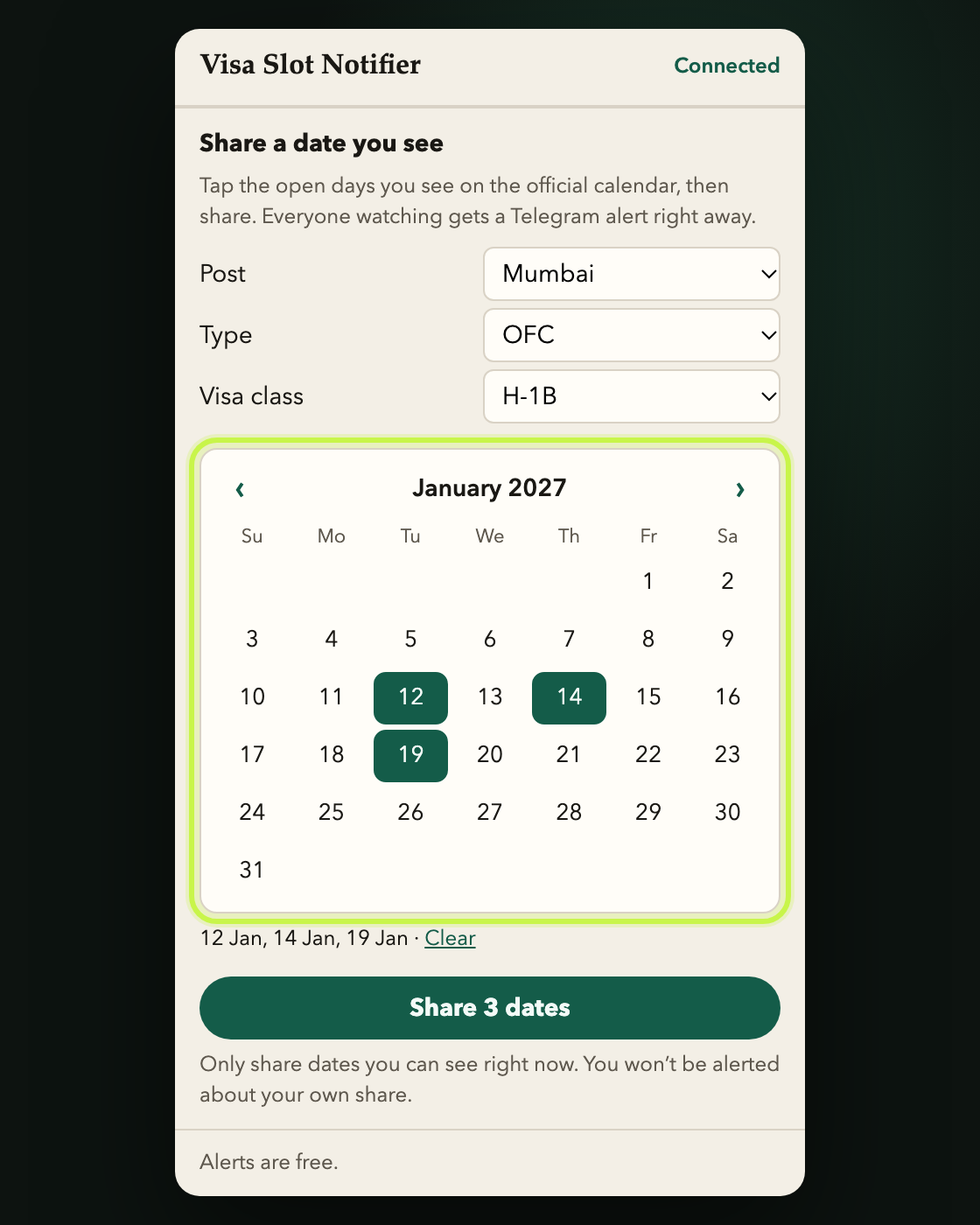
Tap the same days
Use ‹ and › to reach the right month, then tap every open day you see. Tap a day again to unpick it. You can pick up to 10 days at once; they are listed under the calendar.
- 6
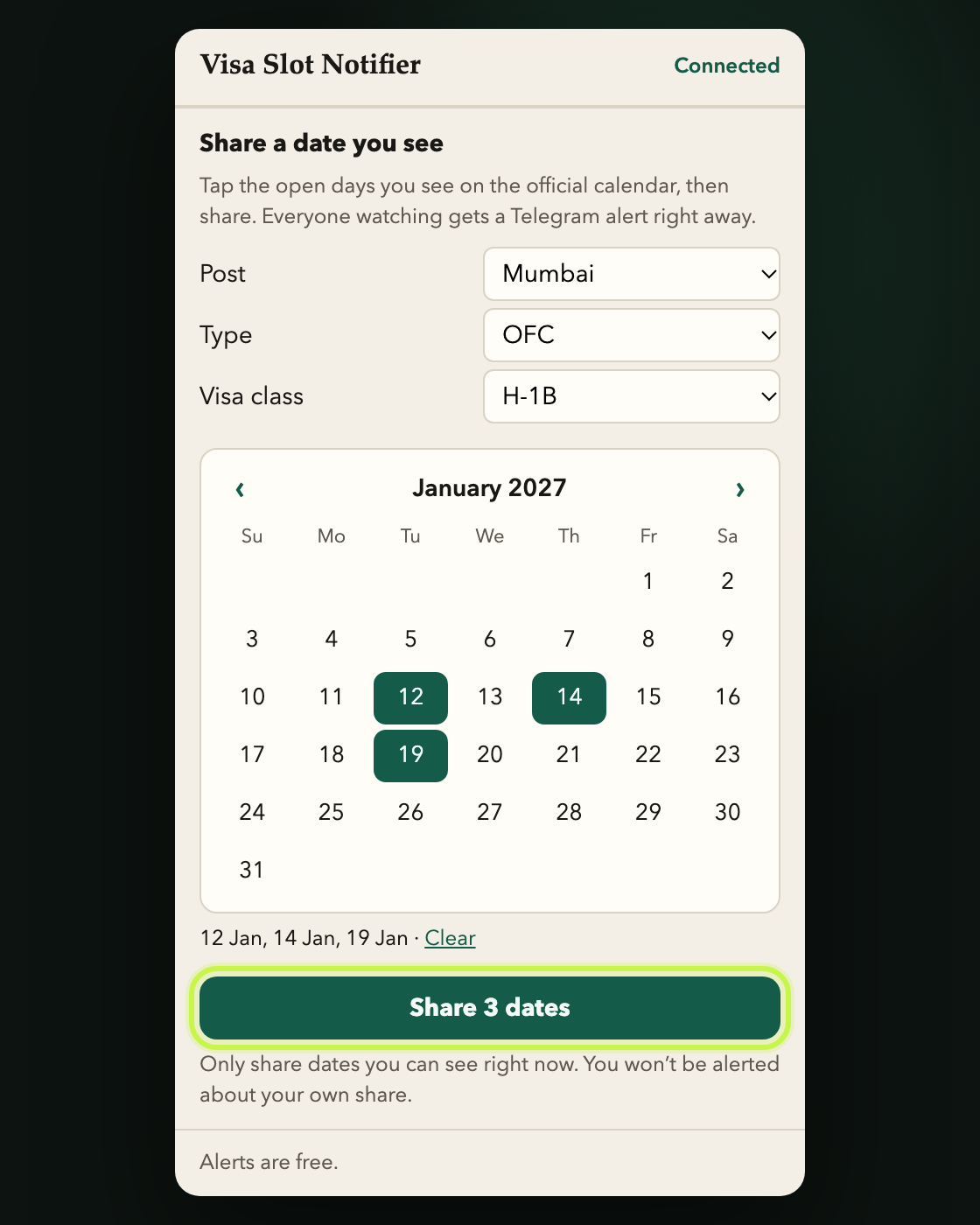
Press Share
Check the days once more, then press Share 3 dates (the number matches what you picked). Everyone watching that post, visa, and type gets a Telegram alert straight away.
- 7
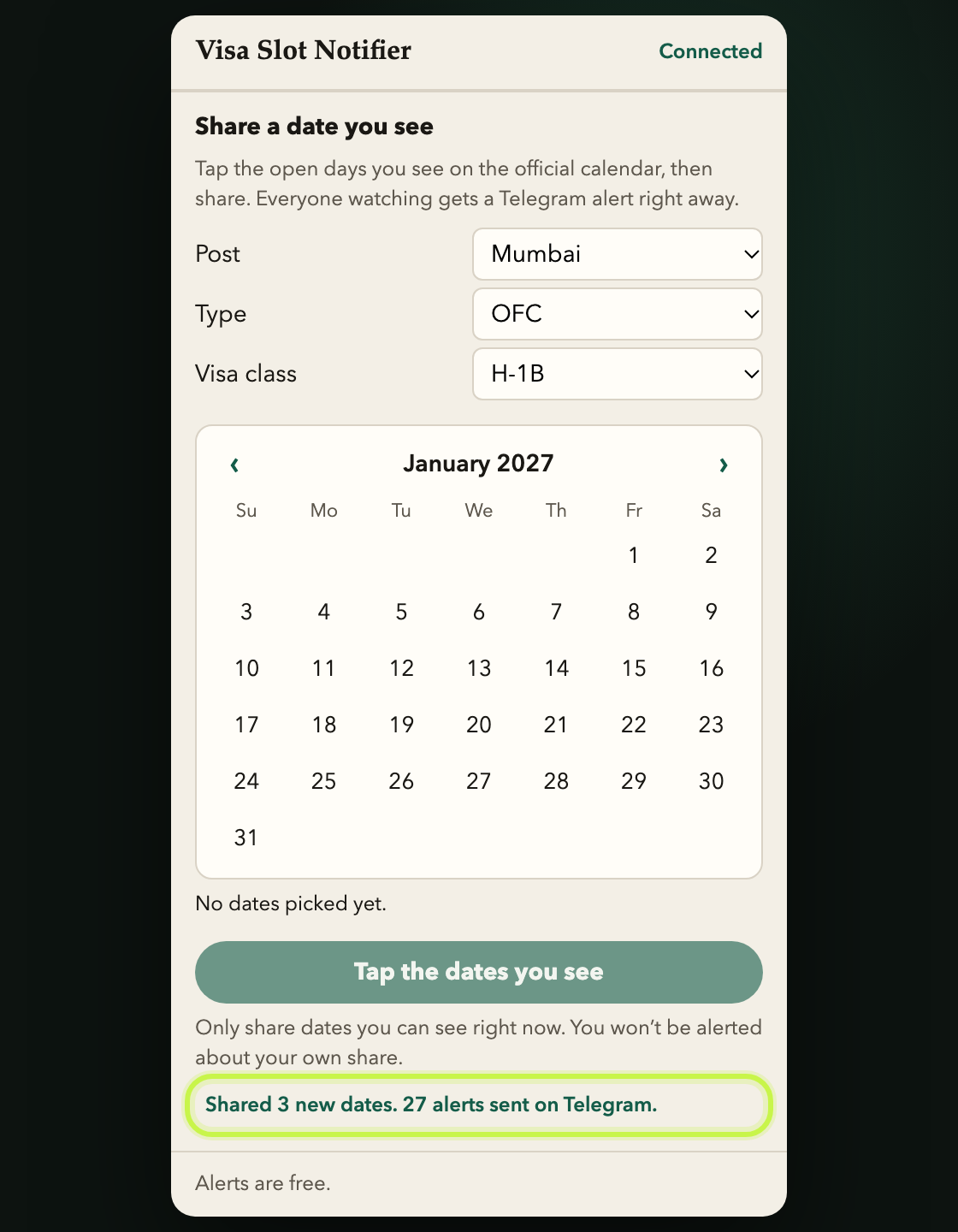
See it went out
A green line tells you how many dates were new and how many alerts were sent. “Someone already shared” means another person beat you to it, and nobody gets a second alert. You are not alerted about your own share.
Shortcut: right-click a full date
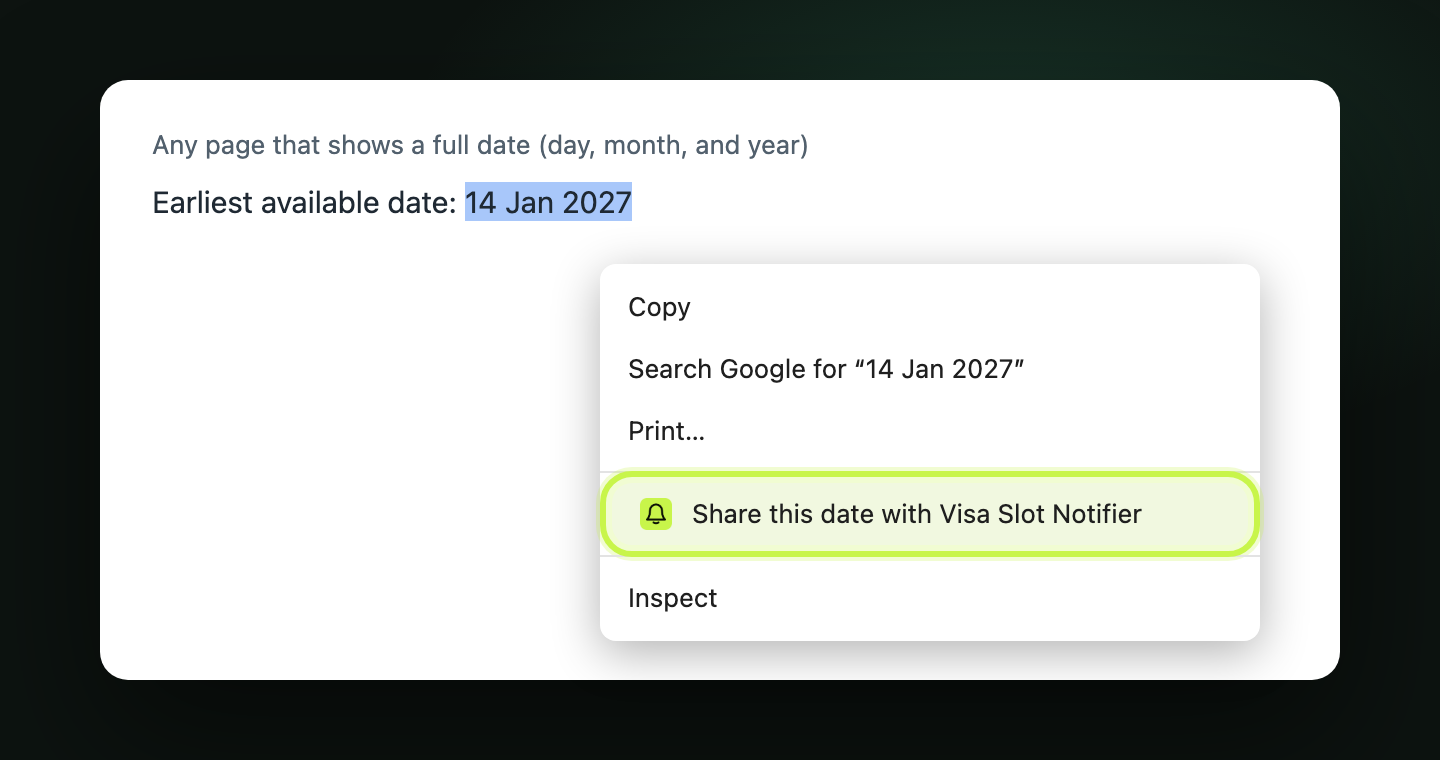
Highlight a date written out in full, like 14 Jan 2027, 14/01/2027, or January 14, 2027. Right-click and choose Share this date with Visa Slot Notifier. The popup opens with that day already picked; check post, type, and visa, then press Share. A plain number like “14” on a calendar has no month or year, so tap it in the popup instead.
Please do
- Share only days you can see open right now
- Match the post, OFC or consular, and visa class to the calendar
- Share every open day you see, not just the one you want
Please don’t
- Share dates from rumours or old messages
- Share past dates or days you already booked
- Share again to “boost” a date. One share alerts everyone
Sharing needs the extension on a computer for now. Screenshots show example dates; the official site looks different. We are not affiliated with it. Read how it works and what a share sends.